Showing posts with label Nexus. Show all posts

Nexus 4 Camera Review & Sample Shots


The reviews are slowly coming in but it seems like this headset is going to be an absolute hit with extraordinary specs at an affordable price. Very important to consumers is how good the included 8MP camera is. Since few if any review are available yet, here are some sample shots, and reviews of the camera on the LG Optimus G, LG's sister phone to the Nexus 4:

Sample shots from the Nexus 4 (from XDA -- click link for large shots):


360 degrees samples :

https://plus.google.com/photos/10971...44425740640962

https://plus.google.com/photos/10971...10990038515330


Sample Shots from the LG Optimus G 8MP (from AP)


According to Android Police:


...this is almost certainly the same 8MP sensor found in the AT&T Optimus G. If you're eager for sample shots, I have some in a review of that phone (you'll have to see the key for 13MP vs 8MP shots). It's a good camera. Not as good as the GSIII / Note II (especially for fine detail), but perfectly respectable, and likely has some of the usability features I discuss fixed since they're mostly related to software.
http://www.androidpolice.com/2012/10/17/optimus-g-review-has-lg-finally-entered-the-big-leagues/#camera

Nexus Prime Release Date Delayed Out of Respect for Steve Jobs' Passing


According to 9to5Google, Google decided to delay the release of Nexus Prime out of respect of passing of Apple's former CEO, Steve Jobs. Google had originally intended to announce the new phone at a San Diego press event yesterday, October 11th. According a press released, an insider stated:
We believe this is not the right time to announce a new product as the world expresses tribute to Steve Jobs’s passing.
However, insiders report that the announcement will not be made on October 27th. The release date is now slated for November 3rd according to Phandroid.

Rumor: Streaming Netflix App Coming to Android Devices Soon


NFLX, a novelty account user on reddit.com recently noted that Netflix hired (and is still hiring) an Android Development Team at the company with plans to bring a Netflix app to Android. Since the Windows 7 phone will have a streaming app and Android is blowing up daily, it's only a matter of time until Android Devices such as the Google Nexus One and the Droid Incredible get a streaming app.

Here are some comments on the reddit AMA (ask me anything forum) by NFLX:

"I do know applications for Android are currently under development so hopefully there will be an option for Linux users some time after that." (link here)
"I just know we're actively hiring Android devs. I wish I knew more about a timeframe for you. Good things come to those who wait. Netflix is essentially a tech company and with the way Android is blowing up it would be stupid of us to ignore that." (link here)

Best Apps for Nexus One (Android Apps)

Actually Useful Stuff

  • Swype. I CANNOT STRESS THIS ENOUGH. It makes text input on your phone a dream come true. Check out a quick video of someone using it here.

    reddit is fun is the unofficial official reddit app. Some people don't like it, a lot of people do. Check it out, but you can always still look at Reddit on your browser. Alternatively, Digg has an official Android app now too. I don't have it, so I don't know if it works, but you know... just FYI.

  • Locale (as described by some website): "This smart app uses GPS, WiFi, and cell signal to adjust your phone settings based on where you are, and when. It will automatically turn itself off in meetings and movies, remind you to charge the phone when battery runs low, and more. There’s no better way to have your phone take care of itself."

  • Urbanspoon is awesome for finding nearby restaurants depending on your mood, price, and location.

  • Movies by Flixter is handy if you go see a lot of movies. It lets you know what's playing nearby, what's opening, and what it has on the Tomatometer.

  • Barcode scanner does what it says. I use it to scan QR codes I find online, like this one for 10001 Cocktails, that automatically download apps to my phone.

  • Cab4Me shows you the locations of nearby cab companies and ratings, prices, and phone numbers.

  • If you're a traveler, TripIt has a fantastic itinerary app.

  • Shopsavvy is cool because it lets you scan barcodes on items at any store, and it shows you a map of all the places nearby that have that item and how much they sell it for. I haven't really gotten a chance to use it yet, but a lot of people like it.

Social Stuff

  • I love A World of Photo. It's not very useful, but it's crazy interesting. Basically, someone on Earth "picks" you to take a photo of something around you, and you send it to them. Then, you point your phone in a direction and "pick" someone else, who has to send you a photo. See some cool ones here, at the World of Photo subreddit. You can rate the photos and send a comment to the sender without giving your phone number or any other info away, except for the World of Photo username you create. I've carried on conversations with all kinds of different people in different parts of the world about the photo they just took of their dog. I've also met redditors. You can make a short bio and people can look; most redditors mention reddit in their bio. I've gotten all kinds of awesome pictures, like a beach in Spain, and a guy in Germany(?) that was at a soccer (football lol) game. I got an actual photo of that game as it was occuring across the pond! It's really rad. I just take pictures of my cat with my ferret on his head.

  • Meebo IM lets you sign onto AIM, MSN, Yahoo, and ICQ all at the same time on your phone. If you've ever used http://meebo.com, you're already familiar with this app.

  • Twitter just released their official app, if you're into that, and Facebook comes standard on it (I'm sure you've noticed that by now). I'd used the default Twitter app, called Peep, and I've also used Seesmic and Tridroid, but I think I like the official app best. The Incredible also has "Friendstream" by default, which merges your friends' Facebook, Twitter, and Flickr updates into one thing, but I prefer having those items separate.

  • Tip Calc is a handy, easy-to-use Tip Calculator.

  • If you care, The Weather Channel has an official app. I don't care. But you might.

Music Stuff

  • Ringdroid is awesome. You can take any song you have saved and cut out a part you'd like to use for a ringtone and save it. Beats paying for tones (or having to use myxer.com).

  • Pure Music is a better way to listen to music on your phone. It displays a widget on one of your pages that gives you full control to play, pause, or do whatever with your music without having to have your music app open, taking up your whole page.

  • Shazam identifies music for you. Like if you hear a song in a restaurant and you don't know what it is but you'd like to hear it later, just open Shazam and let it listen; it'll almost always correctly ID the song for you.

  • Grooveshark lets you stream music to your phone. There are other services like Pandora that will do this, too. Personal preference.

  • TuneWiki is rad. While you play music from your phone, it displays the lyrics, scrolling on your screen accordingly. The lyrics I've seen thus far have always been accurate and punctuated correctly, all the words are spelled right, etc. I believe you can use it for both music you have saved on your phone or Micro SD andstreaming music. I think.

Generally Useless Stuff

  • Pokedroid. A Pokedex for your phone. If you like Pokemon. You can actually speak the Pokemon's name into your phone and it pops up with its stats, the moves it can learn, when it evolves, and it even provides a link to its entry on Bulbapedia... I am a loser

  • If you like when people hate you, the Instant Button app is really helpful. It's basically The Instants Collection, but on your phone. Great. (Yes, I do have it, and yes, I do love it.) The great thing about most of the soundboards you can get is that you have the option of saving any of those sounds as notification sounds or ringtones. But I probably shouldn't have mentioned that.

Customization

  • Handcent SMS lets you completely customize your SMS experience, from colors to the way you are notified. You can have it use one of three different kinds of pop-ups when you get a message, or no popup at all. You can even change the little icon that appears in your notification bar when you get a message. It also lets you save pictures that people send you right to your Micro SD card. After getting Handcent, I recommend opening your "Messages" app that comes default on the phone, hitting the Menu button, and turning off notifications on that one so you're not notified on both Handcent and Messaging.

  • There are all kinds of different wallpaper apps you can get, which are basically huge collections of wallpapers you can choose from and set. I use 4chan Wallpapers because, well, 4chan is good at awesome wallpapers. I think there's a catch, though; you have to have that app either installed or running to use the wallpapers they provide. What I just do is pick a wallpaper, email (or SMS) it to myself, open that email on my phone and save the image to my SD card. That way, if I get rid of that app, I still have the wallpaper.


    [List derived from Reddit User Helloeien's Comment]

Best Case for Nexus One -- Case Mate Gelli


Hands down, this is perhaps the very best case for the Nexus One for most users. Some might prefer other features like a hard plastic case or the ability to store credit cards in the case backing. But for the best of both hard-plastic, and rubber worlds, this Gelli case has the best option for the majority of users.

I was using the including bad for the Nexus One for a while now. Though it's cute and gets compliements, it chances of the phone falling out of it are somewhat high. Also, using the Nexus one without a case is just not the same.

With the Gelli case, the Nexus One backing has a lot more grip without the sticky film rubber that attracts dirt and dust on other cases. It also slips into one's pocket with ease as well.

Oh yeah, it can be removed and applied easy.

Fotoglif Contest: Nexus One Unboxing

Recently, I won a one of three Nexus One phones from the website and photo-licensing/sharing platform site Fotoglif.com.


How do I get my Nexus One to vibrate when I recieve a text message?


From Nexus One Support Forum:

Problem: If the phone is in vibrate / silent mode, it will not vibrate when i receive a text message, only if I get a phone call. How can I fix this? I would like the phone to always vibrate when i receive a message or notification, as I am missing a lot of texts on silent mode!

Solution: You have to go into the messaging app and select Menu->Settings->Check Vibrate at the bottom (also vibrate when notified) and make sure Notifications at the bottom is also checked.

Nexus One Tips and Tricks

1. Add the Google Voice shortcut to your homescreen to easily switch back and forth from Google Voice for your outgoing calls.

2. Try touching and holding text in emails and text messages. If it includes a phone number, you can quickly dial it. If it's an address, you can open Maps directly. Or, you can just copy and paste the text wherever you like.

3. Shortcut: Go straight from the home screen to driving directions using voice search. Click the microphone icon on the search widget, say "Navigate to pizza," for example, and Google Maps will open and display your route automatically.

4. Sometimes it's hard to sort through large collections of photos. You can now order your photos by date and location by toggling the switch in the upper right corner of the screen.

5. The photo gallery is now synced to your favorite online services. Try long-pressing a photo to select which photos you would like to upload. You can send photos to Facebook or Picasa with the Share button.

6. Power users: get the most out of your battery life by adding the power control widget to your homescreen. You can then quickly turn on and off more power- intensive phone settings including WiFi, BlueTooth, GPS, Sync, and screen brightness.

7. Shortcut: Move straight from an email into a tweet, from a text into Facebook, from your contacts to Google Talk. Touch a contact's image or status bubble to see the Quick Contacts menu slide in, letting you choose how you'd like to interact no matter what application you're currently using. This works with native applications on the phone [like text messaging, email, Facebook] as well as relevant app downloaded from Android Market.

8. New feature: Speak to the phone and it does the typing for you. Now you can dictate into any text field by bringing up the virtual keyboard and then on the microphone icon to the left of the space bar. It works best with short sentences, and if you speak at a moderate rate.

9. Add a live wallpaper to your home screen: touch and hold an empty spot on the screen, then choose from smoke, grass, nexus, and several other interactive selections. Try setting the wallpaper to "Water" and touch the screen to make it look like it's raining. Some of the wallpapers even respond to music, so try them when the music player is playing.

10. Load up your Nexus One: To get your music and photos onto Nexus One, plug the phone into your computer, pull down the notification bar, and click "USB Connected". Then click "Mount," and your phone should appear on your computer as a normal external harddrive, where you can upload whatever you like.

11. Keep secure: Click the Menu button, then "Settings" and "Location and Security" to set your custom unlocking pattern for your phone.

12. Take a picture with the 5 megapixel camera, using the flash, zoom, or even white balance and color effects. Flip the switch and shoot a video too, and click "share" to quickly upload to YouTube.

13. Click the dots on the bottom left and right of your homescreen to access all five fully customizable screens of your Nexus One. Add all the widgets, shortcuts, apps, photos, and photos you want on the extra-large customizable screen. Longpress on the dots to get a visual overview and instant access to the desired screen.

14. Scan the weather conditions by-the-minute with the Weather widget. Click the "information" bubble on the top righthand corner to scroll through the day's conditions, minute by minute, and plan ahead.

15. Shortcut: Quickly access recently used applications by touching and holding the Home button, no matter what you're doing.

16. Shortcut: Control your music player directly from the homescreen by adding the Music widget. Cool tip: add the "Many" live wallpaper to see different music visualizers rotate in 3D while you listen to your favorite songs.

17. Shortcut: Longpress on the Search button to activate voice search. Try “call ” to voicedial!

18. Shortcut: Longpress an icon in the all-applications list to add it to your homescreen.

19. Shortcut: Slide the unlock bar to the left to mute your phone.

20. Shortcut: Add a contact directly to the homescreen. Longpress the homescreen and pick Shortcuts->Contact. Select your contact and it will be placed on the homescreen. When you click it, all known ways to communicate with that contact will appear.
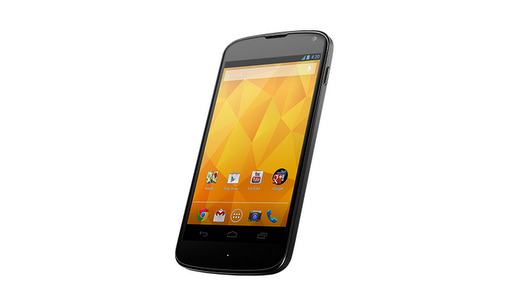

Woot! I just won a Nexus One Google Phone! Yeaaah!


Details: I entered a contest on Fotoglif.com (the site that provides free, fully licensed, revenue-generating photos to bloggers) by posting an article on my blog about them: http://patricksoon.blogspot.com/2010/02/google-nexus-one-giveaway-from-fotoglif.html

Fotoglif Announcement
2nd Fotoglif Announcement

I woke up this morning to find this in my email:

Hello Patrick,

Today is your lucky day because you were 1 of the 3 winners of our Nexus One Giveaway.
Can you please verify your mailing address with me so we may ship out your prize as soon as possible?
Congratulations!

More details to come, and of course review, comparisons and more info about the Nexus One.

Google Nexus One Giveaway! (From Fotoglif)

Photo from fOTOGLIF
Stock photo site, Fotoglif, just kicked-off a new contest for winning Google's Nexus One phone.

If you have a blog, open an account at Fotoglif, create a new post about their site (with an embedded photo) and submit it to them for entry into the draw! There are three Nexus Ones up for grabs. The contest runs from February 15th, 2010 to March 15th, 2010. All winners will be notified by email and through the Fotoglif blog.

Fotoglif offers millions of free, fully licensed, and high resolution pictures--perfect for bloggers! Each image is paired with an monetized ad-system. Thus, all parties: bloggers, advertizers, photographers and Fotoglif benefit from the unique photo embedding system.

Here are the full contest rules:

1. Register an account with fOTOGLIF
2. Fill out all your information including a valid mailing address by clicking the MyAccount tab once registered
3. Publish a post using an image from fOTOGLIF on your blog and e-mail us the link along with your fOTOGLIF user name to win@fotoglif.com

Here's how their site works: